DayBoard 1.3.10Gmail connects with an app password
DayBoard 1.3.10 connects Gmail the way Apple Mail does, with an app password from your Google account, so signing in with Google now covers only Tasks and Calendar.
Changed
Gmail now connects separately, with an app password. Google sign-in no longer asks for access to your mail. Open Settings → Sources → Gmail → Connect Gmail, follow the three steps to make an app password in your Google account, and paste it in. Your inbox, replies, snoozes, follow-ups and unsubscribe work as before (#161).
The app password is stored encrypted in your Mac's Keychain, and your mail goes straight between Gmail and your Mac. Disconnect in Settings deletes it, and signing out of Google disconnects Gmail too (#161).
If Google stops accepting the app password, for example after you change your Google password, Gmail shows Needs a new password with a button to enter a new one (#161).
Updating
Apple Silicon, macOS 14+. AI and MCP remain optional.
Questions: support@getdayboard.com.
If you already use Gmail in DayBoard, your inbox shows Connect Gmail after this update. Add an app password once to bring it back. Tasks and Calendar keep working without signing in again.
App passwords need 2-Step Verification on your Google account. Some work and school accounts don't allow them; ask your admin if Google says they aren't available.
Your data, sign-ins, trial and license stay where they are.
DayBoard 1.3.9Reopens instantly, and a Mac-style model picker
DayBoard 1.3.9 stops the dashboard from loading again every time you bring it back, gives the Assistant's model and effort picker a native look, and is safer with your drafts, scheduled mail and notes.
New features
The Assistant's model and effort picker has a new Mac-style look: pick the model from a pop-up button, set effort on a slider with a Reset button, and turn Fast mode on with a switch. Effort levels and your saved choices are unchanged (#155).
New installs open details in a side panel, and Home offers to connect an account when none is linked. Items in the menu bar open the matching item in the main window, and the System accent follows your macOS accent color (#156).
Bug fixes
Closing the main window and reopening DayBoard from the Dock now shows the dashboard exactly as you left it, on the same view, instead of loading everything again. Moving between views also keeps what was already loaded on screen while it refreshes in the background (#153).
Menus and popovers close more smoothly (#155).
Safer with your data: drafts, scheduled mail, snoozes, notes and settings are no longer lost or sent twice when a save fails, DayBoard quits in the middle of sending, or a file on disk is damaged. A damaged file is copied aside instead of being overwritten (#156).
Views now go by one name each (Inbox, Tasks, Reminders), with several calendar, command menu and keyboard fixes, including week view on daylight-saving days (#156).
Updating
Apple Silicon, macOS 14+. AI and MCP remain optional.
Questions: support@getdayboard.com.
From 1.3.2, DayBoard shows the Software Update window with these notes before it installs.
Your data, sign-ins, trial and license stay where they are.
DayBoard 1.3.8Your to-dos and settings menu stay in the menu bar
DayBoard 1.3.8 keeps more of your day inside the menu-bar panel, so you can check things off without opening the main window.
New features
The panel's third button now lists every open to-do right in the panel, grouped by Google Tasks and Apple Reminders list. Tick one to complete it, fold a list away, or press + on a list to aim quick add at it (#150).
The gear opens a menu inside the panel with Sync (⌘R), Settings… (⌘,), Open Main Window (⌘O), Keyboard shortcuts and Quit DayBoard (⌘Q). The shortcuts work while the panel is open (#150).
Updating
Apple Silicon, macOS 14+. AI and MCP remain optional.
Questions: support@getdayboard.com.
From 1.3.2, DayBoard shows the Software Update window with these notes before it installs.
Your data, sign-ins, trial and license stay where they are.
DayBoard 1.3.7Quick add works without waiting on AI
DayBoard 1.3.7 fixes AI features for people whose Codex sign-in is kept in the macOS Keychain, and lets the menu bar add a to-do to a list you picked even when AI can't help.
Bug fixes
AI features no longer say Codex isn't signed in when your Codex login is stored in the macOS Keychain. DayBoard now uses the same login store Codex itself uses (#147).
When you pick a Google Tasks or Apple Reminders list in menu-bar quick add, DayBoard adds the line as you typed it if AI is unavailable, locked or fails, instead of stopping with an error. Let AI decide still asks AI and opens the form if it can't (#147).
Updating
Apple Silicon, macOS 14+. AI and MCP remain optional.
Questions: support@getdayboard.com.
From 1.3.2, DayBoard shows the Software Update window with these notes before it installs.
Your data, sign-ins, trial and license stay where they are.
DayBoard 1.3.6A Home you can arrange and a faster menu bar
DayBoard 1.3.6 lets you arrange the cards on Home, reworks the menu-bar panel so adding a to-do to a specific list takes one line, and keeps your email drafts safer.
New features
Arrange Home your way. Choose Customize on Home to reorder the cards by dragging or with the move buttons, hide the ones you don't use, collapse a card, and set a card to half or full width. Reset layout puts everything back (#135).
A clearer menu-bar panel. Each day's events sit in one card with their start and end times, and the card folds to a count. Sections show how many items they hold, Overdue follows Today, and to-dos show their due time, in red once they are late. The tabs along the bottom are icons (#134).
Add to a list from the menu bar. Quick add now says which list it adds to. Pick any Google Tasks or Apple Reminders list, or Let AI decide while AI capture is on. Add with details… opens the full capture form (#134).
Bug fixes
An email you are writing is kept when Undo or Edit brings back an older one. The older email opens after you finish or close the current one (#133).
Quitting while an email is still waiting to send now asks first. Keep Open leaves the email's Undo time alone. DayBoard does not ask while your Mac shuts down, restarts or logs out (#133).
A note changed somewhere else is no longer overwritten by an older copy. DayBoard offers to keep your version as a separate note (#133).
After your Mac comes back online, snoozes, follow-ups and the license check retry within five minutes (#133).
Clicking the Dock icon, or choosing File → New Tab, brings the main window back when only Settings is open (#138).
Updating
Apple Silicon, macOS 14+. AI and MCP remain optional.
Questions: support@getdayboard.com.
From 1.3.2, DayBoard shows the Software Update window with these notes before it installs.
Your data, sign-ins, trial and license stay where they are.
DayBoard 1.3.2 brings back a Software Update window that shows each version's release notes before it installs. It also keeps the day's earlier meetings in the menu bar, makes the columns in the main window easier to resize, and has a new icon.
New features
An update window with release notes. When DayBoard finds a new version it now asks first and shows what changed, with Skip This Version, Install on Quit and Install and Relaunch. DayBoard → Check for Updates… shows its progress in the same window: checking, downloading, ready to install, or up to date (#127).
Choose how updates arrive. Settings → Updates → Download and install updates automatically downloads updates in the background and installs them when you quit. When it is off, DayBoard asks first. The update window has the same switch (#127).
Earlier meetings stay in the menu bar. The menu-bar panel lists all of today's events in order. Meetings that have ended turn gray and no longer disappear, and an event is never cut to make room for to-dos (#125).
Easier column resizing. The dividers beside the sidebar and the side panel highlight when you point at them and while you drag. Double-click a divider to return its column to the default width (#124).
Grok replaces Muse under subscription accounts. Settings → AI → Subscription accounts now lists Grok, which uses a SuperGrok or X subscription through xAI's Grok Build CLI (grok login). Grok answers questions only and does not use MCP servers. Muse is no longer listed; if you had picked it, DayBoard goes back to the default and asks you to choose again (#128).
A new icon. DayBoard has a new Sunbeam icon in the Dock, in Finder and on the website. The menu bar icon is now in color (#121).
Clearer Google sign-in. The sign-in button follows Google's branding, and DayBoard shows what data it reads before every Google sign-in. If a permission was left unticked on Google's screen, the affected feature says Google Permission Needed and asks you to sign in again (#122).
A confirmation before AI turns on. Settings and the welcome flow ask you to confirm before the AI features are switched on (#122).
Choose which task lists appear. Settings → Sources has a switch for each Google Tasks list and each Apple Reminders list (#129).
Times for Google tasks. Google does not share a task's time of day, so DayBoard now says Time not shared by Google and shows the time from the matching Apple reminder when there is one (#129).
Bug fixes
The button that shows a hidden sidebar again now responds to clicks (#129).
Updating
Apple Silicon, macOS 14+. AI and MCP remain optional.
Questions: support@getdayboard.com.
From 1.3.0, DayBoard updates itself to 1.3.2 the way it did before: it downloads the update in the background and shows Restart to update in the toolbar. The new update window is part of 1.3.2, so you'll see it from the next update on.
Your data, sign-ins, trial and license stay where they are.
DayBoard 1.3.0 is the official release that follows the 1.3.0 betas. Compared with 1.2.0 it adds a Home page, mail you can triage, write and snooze, an Assistant beside every page, Quick Capture, a menu-bar agenda, Notes and tabs. It is also the first official release that is signed with DayBoard's Developer ID, notarized by Apple and able to update itself, and the first with DayBoard Pro.
It is the same code as 1.3.0-beta.22, with only the version number changed. The beta notes (beta.12 through beta.22) have the detail behind each item below.
New features
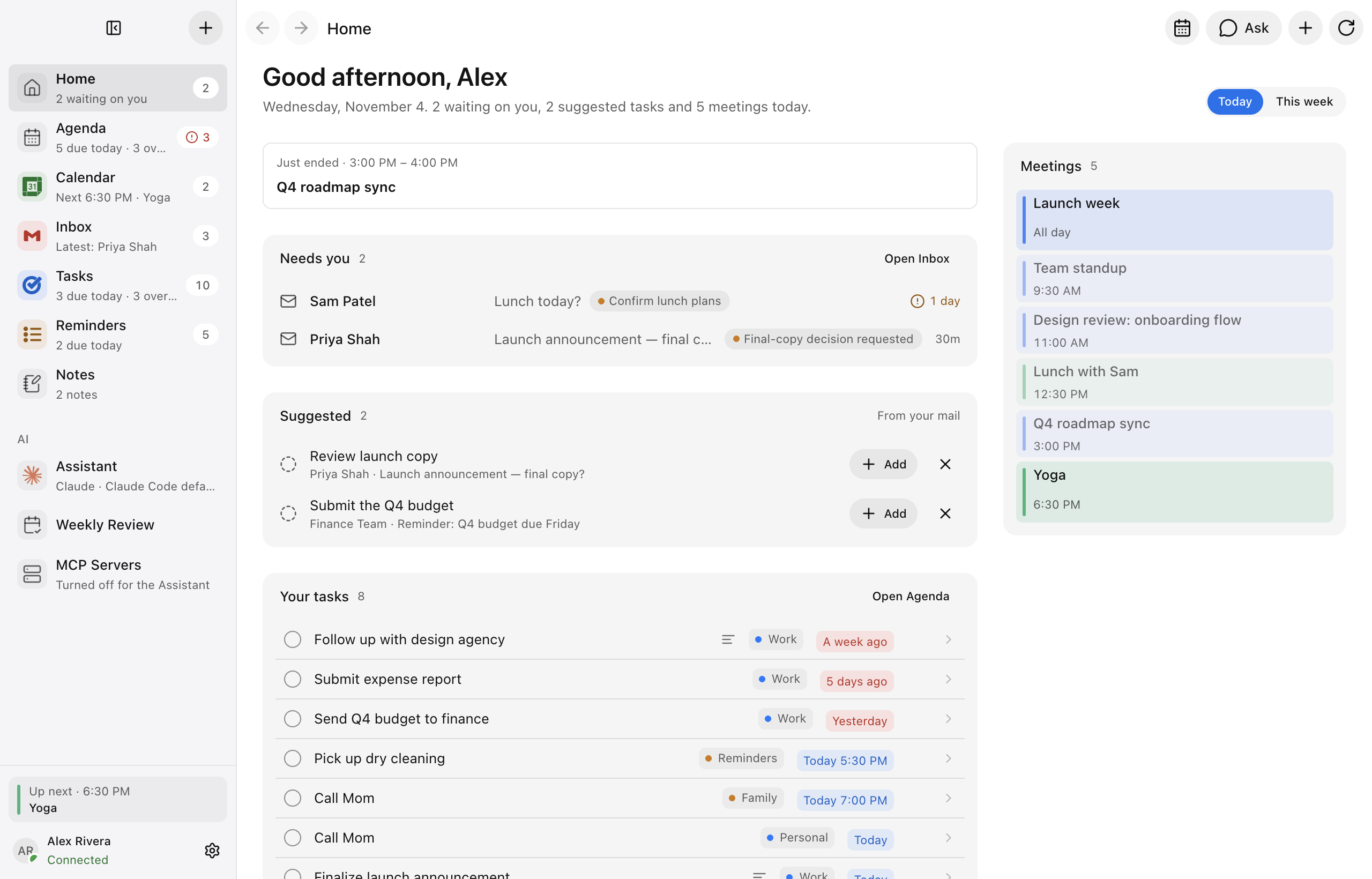
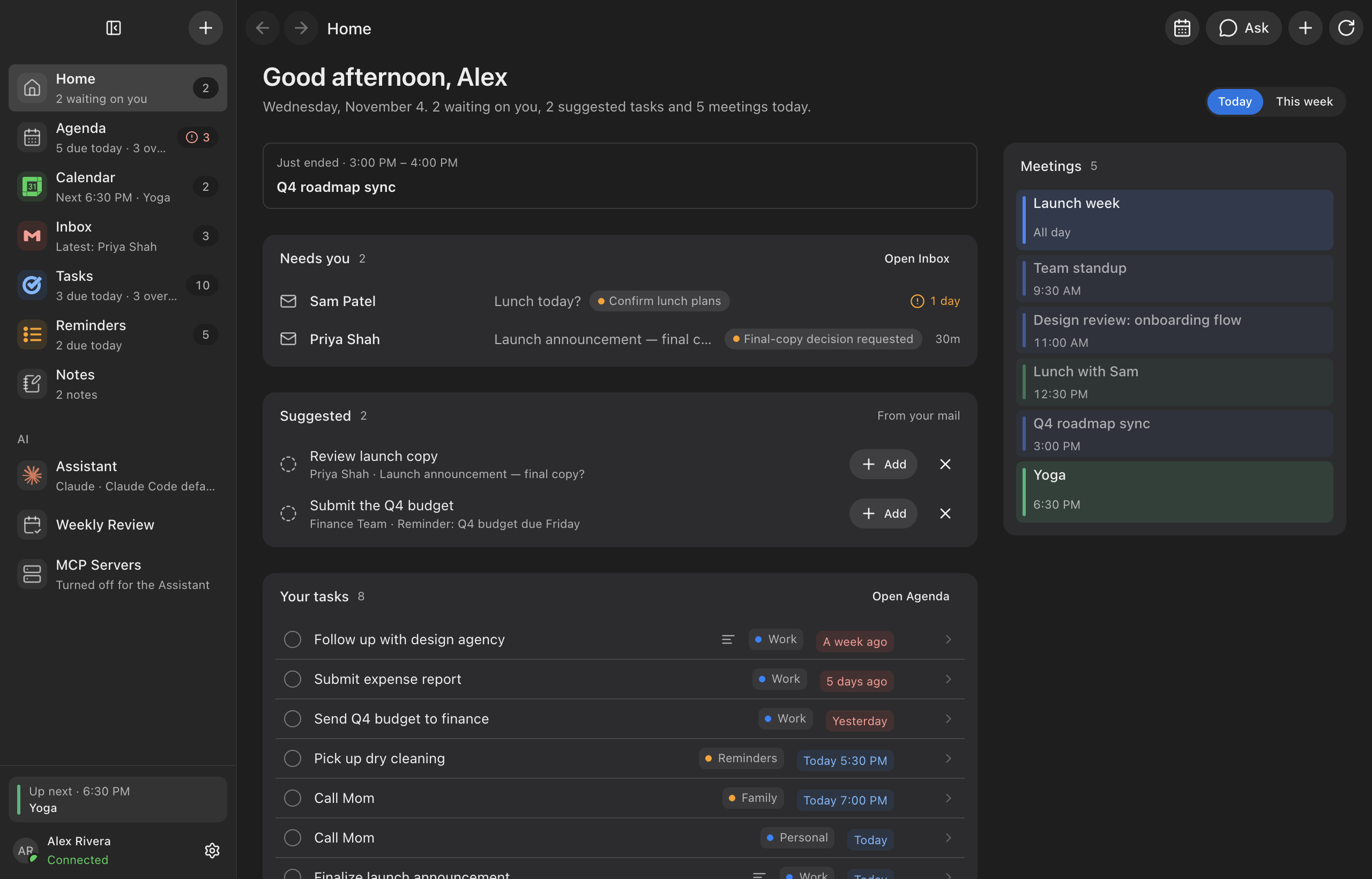
Home. DayBoard opens on a greeting and a one-line summary, the mail and follow-ups waiting on you, tasks suggested from your mail, and one Agenda card for Today or This week. Overdue items fold into a single row that remembers whether you left it open. The Agenda keeps its own sidebar row.
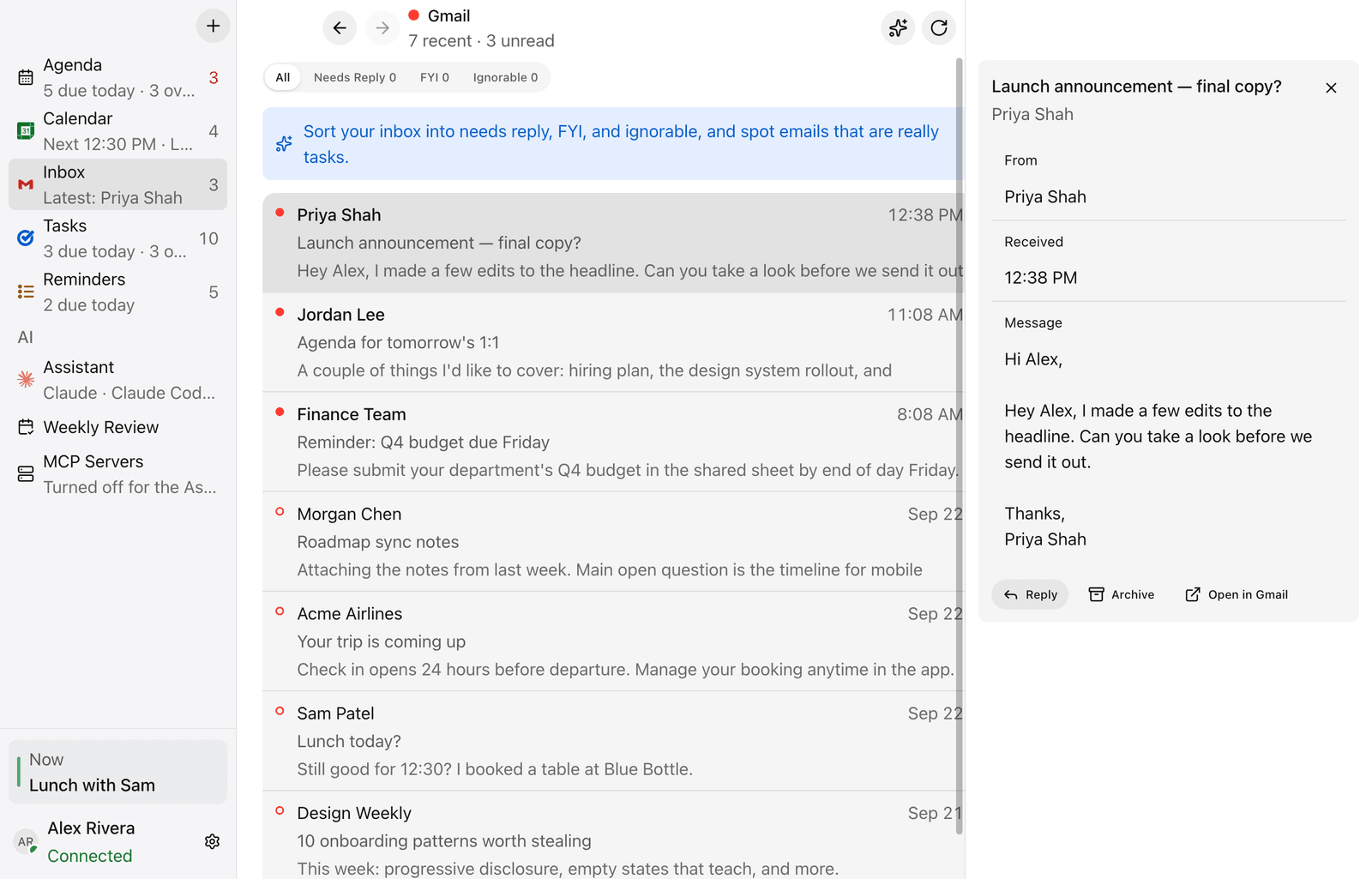
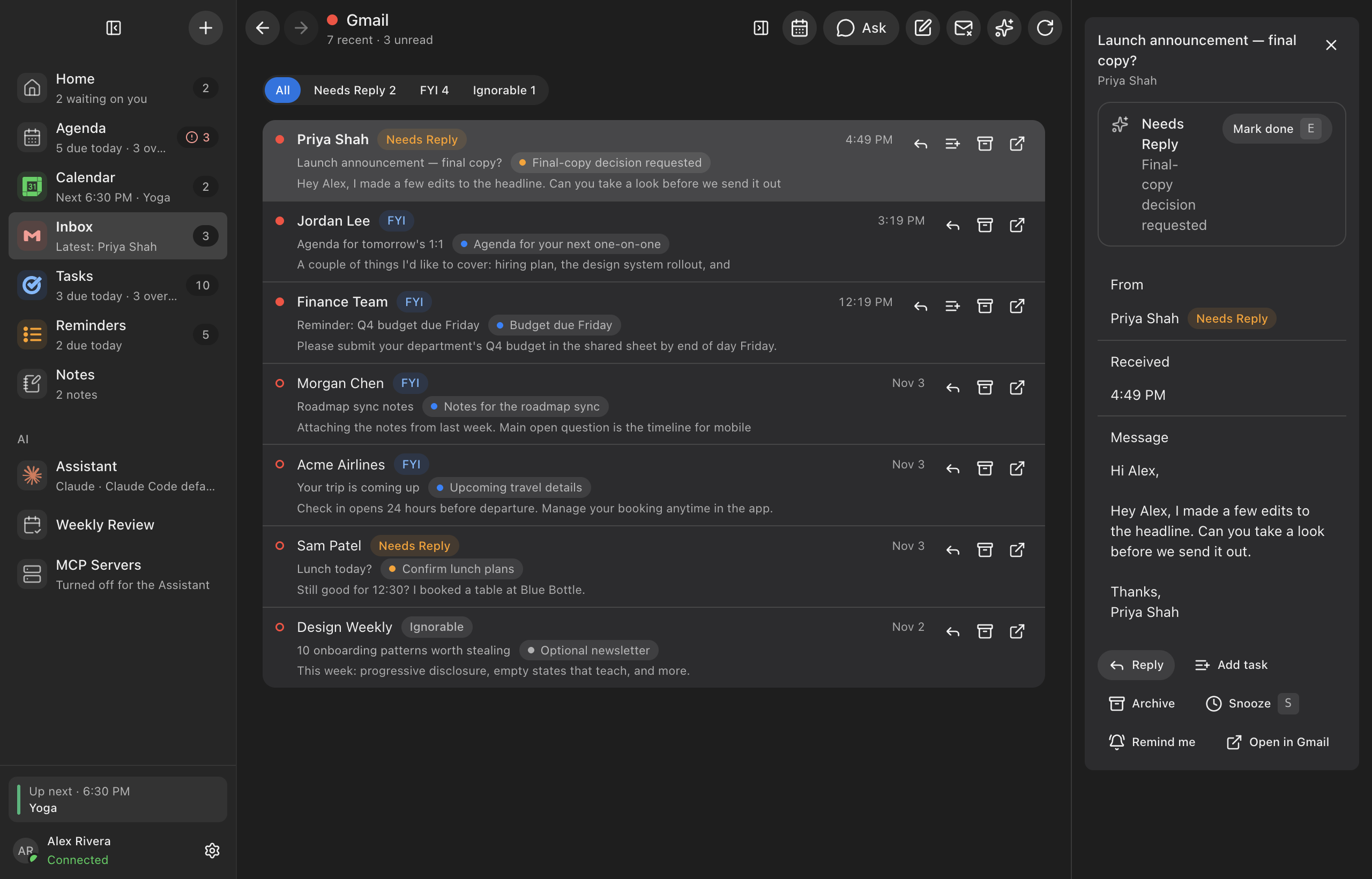
Mail you can work through. New mail is sorted into needs reply, FYI and ignorable, with a chip on every row. Inbox rows fit on one line, with Reply, Add task, Archive and Open in Gmail on hover (Settings → General → Inbox rows → With preview keeps the three-line rows). You can write and send mail with a 5-second Undo, snooze an email, ask to be reminded if nobody replies, and unsubscribe from newsletters in one click where the sender supports it.
Notifications and a Dock badge for snoozes that come back, unanswered follow-ups and, if you choose, new mail. Notifications start off. Both are in Settings → General → Mail.
The Assistant beside any page (⌥⌘J). It knows which email, event or to-do you have open. The composer has a model chip with a per-provider effort setting, / commands and @ mentions of your tasks, events and mail.
⌘K. Jump to any view, email, event, to-do or note, or run an action.
Quick Capture. ⌃⌥⇧Space (changeable in Settings) opens a small panel over any app. Type a thought and press Enter, and it is filed in Google Tasks, Apple Reminders or Google Calendar, with Undo.
Menu-bar agenda. A menu-bar icon opens today's items, the next meeting, the mail that needs you, a collapsible overdue row and a capture box.
Up Next. A card for the next meeting with a Join button and AI meeting prep, and an optional notification before it starts. With a Granola MCP server set up, you can pull that meeting's notes afterwards and turn their action items into Tasks or Reminders.
Notes. Markdown notes with live preview, found with ⌘K. An Assistant chat can be saved as a note.
Memory. Tell DayBoard your preferences in Settings → AI. The Assistant and reply drafts follow them. A preference suggested from your edits is saved only when you pick Remember.
Tabs and your own sidebar. ⌘T opens a tab and your tabs come back next time. Reorder the sidebar views, hide any but Home, and turn off the count pills in Settings → General → Sidebar.
Keyboard. ⌘N opens New Item from the main views, J/K, Return, E, R, S and C work in the Inbox, and ? shows every shortcut.
A welcome for new installs. A four-step welcome covers what DayBoard is, connecting Google and Apple Reminders, choosing an AI tool (optional) and the shortcuts worth knowing. Every step can be skipped. Help → Welcome to DayBoard… opens it again.
Agent activity and usage. Settings → MCP Servers lists the DayBoard tools the Assistant or an outside agent used in the last 30 days (names and outcomes only). Settings → AI shows the AI requests and tokens DayBoard recorded per day and model.
Send feedback from the app. Help → Send Feedback… opens an email to support@getdayboard.com with your DayBoard and macOS versions filled in.
DayBoard Pro
Free, with no license check: Tasks, Gmail, Calendar, Reminders, sync and linking, notes, settings and the MCP server.
DayBoard Pro: the Assistant, AI actions, dictation, AI parsing in Quick Capture and learned memories. Each Mac gets a 14-day trial that starts the first time you use one of them. After the trial only AI locks. Nothing you wrote is lost, and everything else keeps working.
To unlock Pro, buy a key at getdayboard.com/pricing.html, open Settings → License, paste the key and click Activate. A key works on up to 3 Macs. Settings → License → Deactivate this device asks before it frees a seat. Your key appears on the receipt page after you pay and isn't emailed, so save it right away.
You still bring your own AI: Claude Code, Codex or an API key from your provider.
Install and updates
If updates never arrive, make sure DayBoard was dragged into Applications in Finder. A copy put there another way can run from a read-only location where macOS won't let it replace itself. Dragging it out of Applications and back in Finder once fixes this.
Signed, notarized and self-updating. The app and the disk image are signed with DayBoard's Developer ID and notarized by Apple. DayBoard checks for updates after launch and every few hours, downloads them in the background and shows Restart to update in the toolbar. If you don't restart, the update installs the next time you quit.
From 1.3.0-beta.12 or later, DayBoard updates itself to 1.3.0. Your data, sign-ins, trial and license stay where they are. Once you are on 1.3.0, DayBoard offers official releases only, not betas.
From anything older than 1.3.0-beta.12, download the DMG from getdayboard.com/download, quit DayBoard and drag the new app into Applications. App data lives outside the app and is kept.
Bug fixes
Going offline no longer signs you out of Google. DayBoard shows a connection error with Retry and keeps you signed in.
An open event editor no longer resets when the calendar refreshes in the background.
Note text survives a failed save, and a deleted note doesn't come back.
An email waiting in its Undo window is sent only from the Google account it was written in.
Saves and a normal quit no longer stall while the Google sign-in browser tab is open.
Google Calendar events that start and end at the same time show up in Agenda, Home and the menu bar, and no longer block planning slots.
MCP clients reach DayBoard after a port clash without a relaunch, and a turned-off MCP server no longer looks like a rejected key.
Long text stays in its row, Calendar "Focus on" works, and toasts are readable in dark mode.
Privacy and security
Apple Silicon, macOS 14+. AI and MCP remain optional.
Questions: support@getdayboard.com.
An anonymous daily check-in. Once a day, DayBoard tells its license service at https://api.getdayboard.com that it's in use. It sends a random ID made only for this, the DayBoard version, and whether you're in the AI trial or have Pro. It never sends your calendar, tasks, reminders, mail, AI chats, Google account or license key. Settings → Updates → Send a daily anonymous check-in turns it off. The privacy policy has the details.
DayBoard also talks to the license service to activate or deactivate a key and for a daily key check. The trial is tracked on your Mac.
Memories are saved on your Mac. The activity log keeps tool names and outcomes, never what a tool read or wrote.
Electron 44.10.0 and updated bundled libraries, with the published security fixes listed in the beta.15 notes. The MCP SDK is 1.32.0, with input limits on DayBoard's local MCP servers.
DayBoard 1.3.0 beta 22One-line Inbox rows and fixes for lost edits
This beta is the release candidate for DayBoard 1.3.0. It makes the Inbox easier to scan, asks before a license is deactivated, and fixes four cases where typed work or the wrong account could slip through. Licensing works as in beta.21: everything that isn't AI is free, AI runs a 14-day trial on each Mac, and DayBoard Pro unlocks it for good.
New features
Inbox emails on one line. Each Inbox row now shows sender, subject, triage chip and time on a single line. Reply, Add task, Archive and Open in Gmail take the time's place when you hover, focus or select a row, and the selected row shows its preview. Settings → General → Inbox rows → With preview keeps the three-line rows. Mail rows on the Agenda are unchanged (#117).
A confirmation before deactivating. Settings → License → Deactivate this device now asks first, and reminds you to have your key saved because it isn't emailed (#110).
Bug fixes
Event edits survive a calendar refresh. An open event editor no longer resets, or turns read-only, when the calendar refreshes in the background (#115).
Note text survives a failed save. If saving a note fails, the text stays queued and saves on the next try. Back stays in the editor while the save is failing, and a deleted note doesn't come back (#115).
Undo send keeps its account. An email waiting in its Undo window is sent only from the Google account it was written in. If you switched accounts, DayBoard shows "Couldn't send" with Edit instead (#115).
Google sign-in no longer blocks saves. While the sign-in browser tab was open, saves and a normal quit could stall for up to ten minutes. They now work during sign-in, and signing out stays signed out (#115).
Updating
From beta.12 or later, DayBoard downloads beta.22 in the background and shows Restart to update in the toolbar. Settings → Updates checks on request. If you don't restart, it installs the next time you quit. Your data, sign-ins, trial and license stay where they are.
If updates never arrive, make sure DayBoard was dragged into Applications in Finder. A copy put there another way can run from a read-only location where macOS won't let it replace itself. Dragging it out of Applications and back in Finder once fixes this.
Apple Silicon, macOS 14+. AI and MCP remain optional.
DayBoard 1.3.0 beta 21Collapsible overdue on Home and in the menu bar
This beta folds overdue items into one row on Home and in the menu-bar panel, so a long overdue list no longer pushes today out of view. Licensing works as in beta.20: everything that isn't AI is free, AI runs a 14-day trial on each Mac, and DayBoard Pro unlocks it for good.
New features
Overdue folds into one row on Home. Home's Agenda card now starts with a single "N overdue tasks" row, like the Agenda page. Click it to see the overdue items, and Home remembers whether you left it open (#106).
The same row in the menu bar. The menu-bar panel used to show only an overdue count. It now has the same collapsible row, listing up to eight overdue to-dos with how late each one is. A link opens DayBoard for the rest, and the panel also remembers whether you left the row open (#108).
Bug fixes
Zero-length events no longer block planning slots. When you plan a time for a to-do, a Google Calendar event that starts and ends at the same moment (such as 10:00–10:00) no longer marks that time as busy (#104).
Updating
From beta.12 or later, DayBoard downloads beta.21 in the background and shows Restart to update in the toolbar. Settings → Updates checks on request. If you don't restart, it installs the next time you quit. Your data, sign-ins, trial and license stay where they are.
If updates never arrive, make sure DayBoard was dragged into Applications in Finder. A copy put there another way can run from a read-only location where macOS won't let it replace itself. Dragging it out of Applications and back in Finder once fixes this.
Apple Silicon, macOS 14+. AI and MCP remain optional.
DayBoard 1.3.0 beta 20Agenda on Home, a welcome for new installs and a daily check-in
This beta puts your agenda on Home, adds a short first-run welcome for new installs and an anonymous daily check-in, so we know how many people use DayBoard. Licensing works as in beta.19: everything that isn't AI is free, AI runs a 14-day trial on each Mac, and DayBoard Pro unlocks it for good.
New features
A welcome for new installs. A new install opens a four-step welcome: what DayBoard is, connecting Google and Apple Reminders, choosing an AI tool (optional), and the shortcuts worth knowing. Every step can be skipped. An example day on the right fills in as you connect accounts. It shows once. Help → Welcome to DayBoard… opens it again. If you already use DayBoard, updating doesn't show it (#98).
An anonymous daily check-in. Once a day, DayBoard tells its license service at https://api.getdayboard.com that it's in use. It sends a random ID made only for this (not your license key or anything from your Mac's hardware), the DayBoard version, and whether you're in the AI trial or have Pro. It never sends your calendar, tasks, reminders, mail, AI chats, Google account or license key, and the service doesn't store your IP address. To turn it off, open Settings → Updates and switch off Send a daily anonymous check-in. The privacy policy has the details (#97).
Your agenda on Home. Home now has one Agenda card in place of the separate tasks and meetings cards: overdue items, then events, tasks and reminders by day, for Today or This week (#101).
Bug fixes
Google Calendar events that start and end at the same time show up everywhere. Events like a 10:00–10:00 reminder appeared in Calendar and Up next but not in Agenda, Home or the menu bar. They now appear on the day they start (#101).
Updating
From beta.12 or later, DayBoard downloads beta.20 in the background and shows Restart to update in the toolbar. Settings → Updates checks on request. If you don't restart, it installs the next time you quit. Your data, sign-ins, trial and license stay where they are.
If updates never arrive, make sure DayBoard was dragged into Applications in Finder. A copy put there another way can run from a read-only location where macOS won't let it replace itself. Dragging it out of Applications and back in Finder once fixes this.
Apple Silicon, macOS 14+. AI and MCP remain optional.
This is the first beta with licensing on. Everything that isn't AI stays free. AI features now run a 14-day trial, and DayBoard Pro unlocks them for good.
What changes for you
DayBoard talks to the license service at https://api.getdayboard.com only to activate or deactivate a key and for the daily check. The trial is tracked on your Mac.
Free, with no license check: Tasks, Gmail, Calendar, Reminders, sync and linking, notes, settings and the MCP server.
DayBoard Pro: the Assistant, AI actions, dictation, AI parsing in Quick Capture and learned memories. Each Mac gets a 14-day trial that starts the first time you use one of them. No trial was recorded while licensing was off, so everyone who updates starts with the full 14 days, beta testers included.
After the trial, the Assistant shows that the trial ended and other AI actions say a license is required. Nothing you wrote is lost, and everything else keeps working.
To unlock Pro, open Settings → License, paste your key and click Activate. A key works on up to 3 Macs. To move it, choose "Deactivate this device" on the old Mac first. DayBoard checks the key once a day and keeps working offline for 30 days after the last good check.
Also in this build
Send feedback from the app. Help → Send Feedback… opens a new email to support@getdayboard.com with your DayBoard and macOS versions filled in. If your mail lives in a browser, Help → Copy Feedback Address copies the address instead. Settings → Updates has both in a new Feedback section (#92).
In demo mode, opening a message from Home now shows it in the Inbox folder (#80).
Updating
From beta.12 or later, DayBoard downloads beta.19 in the background and shows Restart to update in the toolbar. Settings → Updates checks on request. If you don't restart, it installs the next time you quit. Your data and sign-ins stay where they are.
If updates never arrive, make sure DayBoard was dragged into Applications in Finder. A copy put there another way can run from a read-only location where macOS won't let it replace itself. Dragging it out of Applications and back in Finder once fixes this.
Apple Silicon, macOS 14+. AI and MCP remain optional.
DayBoard 1.3.0 beta 18MCP that waits its turn, readable toasts, a notarized disk image
This beta fixes two problems found after beta.17 and notarizes the disk image itself, not only the app inside it. Beta.18 was published on November 5, 2026 (UTC) from 8c3665c00b4f7d13fe995d7b0628bb3905d879a0.
Bug fixes
MCP clients reach DayBoard after a port clash. If another app, often another copy of DayBoard, holds DayBoard's MCP port, DayBoard now tries again every 5 seconds and starts its MCP server as soon as the port is free. Until then, Settings → MCP Servers and its Connect a client buttons say which port is busy instead of "Starting…". Before, the server didn't start until DayBoard was relaunched.
A turned-off MCP server no longer looks like a bad key. When Allow MCP clients is off, DayBoard tells clients the server is unavailable, so they stop reporting a rejected access key.
Toasts are readable in dark mode. The messages at the bottom of the window follow light and dark mode. In dark mode their text was near-black on a dark background.
Install
The DMG is notarized and stapled. macOS now checks a downloaded DayBoard disk image the same way it checks the app. Releases up to beta.17 notarized only the app inside the DMG.
Also in this build
Groundwork for paid AI (#75): license handling for Quick Capture, deactivation and installation IDs. Published betas build with licensing off, so every feature stays free and nothing here changes what you see.
Updating
From beta.12, beta.13, beta.15 or beta.17, DayBoard downloads beta.18 in the background and shows Restart to update in the toolbar. Settings → Updates checks on request. If you don't restart, it installs the next time you quit. Your data and sign-ins stay where they are.
If updates never arrive, make sure DayBoard was dragged into Applications in Finder. A copy put there another way can run from a read-only location where macOS won't let it replace itself. Dragging it out of Applications and back in Finder once fixes this.
Apple Silicon, macOS 14+. Google may restrict accounts outside the project's test audience. AI and MCP remain optional.
Home, smarter mail, and an Assistant beside every page
This beta adds a Home page, mail you can send, snooze and clean up, an Assistant you can dock beside any view, and Notes. It carries everything planned for beta.16, which was tagged but never published: its release build stopped at a test before signing. Beta.17 was published on November 5, 2026 (UTC) from c9979977d065c41fac164aecb2cb9bc48fd8c718.
New features
Home. DayBoard opens on a greeting and a one-line summary, the mail and follow-ups waiting on you (oldest worries first, with how long each has waited), tasks suggested from your mail, your tasks and your meetings, for today or this week. The Agenda moves to its own sidebar row.
⌘K. Jump to any view, email, event, to-do or note, or run an action. Press Tab to hand what you typed to the Assistant.
Ask the Assistant beside any page (⌥⌘J). It knows which email, event or to-do you have open. ⌥⌘K shows your calendar in the same pane.
Mail triage everywhere. New mail is sorted into needs reply, FYI and ignorable as it arrives, with a chip on every row and a one-line summary on the open email. E marks it done.
Write and send mail, with Undo for 5 seconds (change it in Settings → General → Mail). Reply drafts follow what you've asked DayBoard to remember.
Snooze and "remind me if no reply". A snoozed email leaves the inbox and comes back unread when you chose. A follow-up puts a thread back on Home if nobody answered.
Subscriptions. See every newsletter by sender with how many you opened, and unsubscribe in one click where the sender supports it.
Notifications and a Dock badge. Get notified when a snooze comes back, a follow-up goes unanswered, or (if you choose) any new mail arrives; notifications start off. The Dock icon counts what waits on you, or unread mail, or nothing. Both are in Settings → General → Mail.
The menu bar panel shows the first three emails from Home's Needs you list.
Notes. Write Markdown notes with live preview, find them with ⌘K, and save an Assistant chat as a note. MCP clients can read and, with Allow changes on, write them.
Memory. Tell DayBoard your preferences in Settings → AI. When you edit one of its reply drafts before sending, it may suggest a preference; it saves it only if you pick Remember. The Assistant and reply drafts follow them; turn memory off or forget any one at any time.
Agent activity and usage. Settings → MCP Servers lists every DayBoard tool the Assistant or an outside agent used in the last 30 days (names and outcomes only). Settings → AI shows the AI requests and tokens DayBoard recorded per day and model.
Tabs. ⌘T opens a tab; each keeps its own view. ⌃Tab and ⌘1–9 switch, ⌘W closes one, and your tabs come back next time.
Your sidebar, your order. Reorder the views, hide any but Home, and turn off the count pills in Settings → General → Sidebar.
Keyboard. J/K, Return, E, R, S and C work in the Inbox, and ? shows every shortcut.
Bug fixes
In the Assistant's @ menu, an item with a long title no longer squeezes its date or list to nothing in a narrow window. The title gives way first, as in ⌘K.
Privacy
Memories are saved on your Mac. The Assistant can't save one itself, and a preference suggested from your edits is saved only when you confirm it, so text inside an email can't plant one. Outside agents can add one, only while Allow changes is on.
The activity log keeps tool names and outcomes, never what a tool read or wrote.
Usage counts come from DayBoard's own records. Your provider's plan limits aren't visible to DayBoard, so none are shown.
Updating
From beta.12, beta.13 or beta.15, DayBoard downloads beta.17 in the background and shows Restart to update in the toolbar. Settings → Updates checks on request. If you don't restart, it installs the next time you quit. Your data and sign-ins stay where they are.
If updates never arrive, make sure DayBoard was dragged into Applications in Finder. A copy put there another way can run from a read-only location where macOS won't let it replace itself. Dragging it out of Applications and back in Finder once fixes this.
Apple Silicon, macOS 14+. Google may restrict accounts outside the project's test audience. AI and MCP remain optional.
DayBoard 1.3.0 beta 15Security updates and layout fixes
This beta updates Electron and the app's bundled libraries to versions with published security fixes, and keeps long text inside its row. It carries everything planned for beta.14, which was tagged but never published: its release build stopped at a test before signing. It is a draft until the build is made and verified on an Apple Silicon Mac.
Security
Electron 44.10.0 (from 44.4.4). Fixes GHSA-jr5w-w6x2-84p9 (high, certificate handling for eMudhra certificates) and GHSA-x562-297c-g43g (moderate).
Bundled libraries updated to patched versions: undici 6.29.1 (including a TLS validation fix), hono 4.13.13, @hono/node-server 2.1.5, fast-uri 3.1.9, body-parser 2.4.0, qs 6.16.2 and ip-address 10.7.4. Of these, DayBoard loads hono, @hono/node-server and fast-uri for its local MCP server, and undici only when the AI SDK downloads a file in API-key mode. The others ship inside the app but are never loaded. The interface's bundled seroval is 1.7.5.
Bug fixes
Long text stays in its row. Agenda task titles stop before the list chip and due date, event rows leave the title room next to a long location, Calendar month cells drop the time instead of squeezing the title, and long pasted links wrap inside pop-up and side-panel details. The @-mention menu and Meeting Notes suggestions truncate long names.
Calendar "Focus on" works. The buttons on a selected day did nothing; they now focus the item the same way the Agenda does.
Links that can't open say why. In demo mode, or for a link that isn't https, DayBoard shows a message instead of doing nothing.
Updating
From beta.12 or beta.13, DayBoard downloads beta.15 in the background and shows Restart to update in the toolbar. Settings → Updates checks on request. If you don't restart, it installs the next time you quit. Your data and sign-ins stay where they are.
If updates never arrive, make sure DayBoard was dragged into Applications in Finder. A copy put there another way can run from a read-only location where macOS won't let it replace itself. Dragging it out of Applications and back in Finder once fixes this.
Apple Silicon, macOS 14+. Google may restrict accounts outside the project's test audience. AI and MCP remain optional.
DayBoard 1.3.0 beta 13Quick Capture and side-panel fixes
This is the first beta that beta.12 installs on its own, so it is also the first real test of DayBoard's in-app updates. It is a draft until the build is made and verified on an Apple Silicon Mac.
Bug fixes
Quick Capture keeps your first keystrokes. The first time the panel opened after launch, its text box stayed disabled for a moment while settings and accounts loaded, so the first letters you typed were lost. It now takes typing right away, and Enter waits until DayBoard knows where the item can go. If AI capture is off, what you typed becomes the title in the manual form.
Suggested links fit the side panel. With details open in the side panel at its default width, a Suggested row under "Linked items and suggestions" squeezed its title to a single letter and ran the source under the Link button. Narrow panels now put the title and source on the first line and the badge and buttons underneath, like the Related context rows.
Updating
From beta.12, DayBoard downloads beta.13 in the background and shows Restart to update in the toolbar. Settings → Updates checks on request. If you don't restart, it installs the next time you quit. Your data and sign-ins stay where they are.
If updates never arrive, make sure DayBoard was dragged into Applications in Finder. A copy put there another way can run from a read-only location where macOS won't let it replace itself. Dragging it out of Applications and back in Finder once fixes this.
Apple Silicon, macOS 14+. Google may restrict accounts outside the project's test audience. AI and MCP remain optional.
DayBoard 1.3.0 beta 12signed, self-updating, Quick Capture and the menu bar
This beta carries beta.11's Google sign-in forward and adds the native macOS work merged since then. It is a draft until the build is made and verified on an Apple Silicon Mac.
New features
DayBoard now updates itself. This is the first beta signed with DayBoard's Developer ID, notarized by Apple and published with update metadata. It checks for newer betas after launch and every few hours, downloads them in the background, and shows Restart to update in the toolbar when one is ready. If you don't restart, the update installs the next time you quit. Settings → Updates and DayBoard → Check for Updates… still check on request. Your data and sign-ins stay where they are.
Quick Capture. ⌃⌥⇧Space (changeable in Settings) opens a small panel over any app, including full-screen apps, on the display under the pointer. Type a thought and press Enter: the AI capture files it in Google Tasks, Apple Reminders or Google Calendar, focus goes straight back to the app you were in, and a confirmation offers Undo.
Menu-bar Agenda. A menu-bar icon opens today's items, the next meeting, recent captures and a capture box without bringing the whole dashboard forward.
Up Next. A card for the next meeting shows when it starts, a Join button and the AI meeting prep, with an optional notification shortly before it starts. If a Granola MCP server is set up in DayBoard, you can pull that meeting's notes afterwards and turn their action items into Tasks or Reminders. Each of these features can be switched off in Settings.
A smarter Assistant composer. The model chip has a per-provider effort setting, / opens commands and @ mentions your tasks, events and mail. Settings → AI and the composer share one model list.
⌘N opens New Item from Agenda, Inbox, Calendar and the other main views, including when focus is on a row's action controls. It is ignored while a dialog or confirmation is open, so it never stacks a second New Item window. The + buttons show the shortcut in their tooltip.
The sidebar + is clickable everywhere. It was previously covered by the window drag strip in views where it was the only way to add an item. The empty title-bar strip still drags the window.
A more native window. Main pages share 24px headers and gutters and a stable history toolbar. Sidebar symbols use consistent 18px marks in 28px tiles, keeping the logo, provider identities, accent and density settings.
Responsive details pane. Editors and drafts stay mounted when the details pane moves between side, inline and stacked layouts. The pane can be resized and shown or hidden from the keyboard, and focus returns to the item you opened it from. Compact Calendar titles stay readable, and Calendar controls stay visible above the selected week.
Bug fixes
Going offline no longer signs you out of Google. If DayBoard renews its Google access while the Mac is offline or Google's sign-in service is failing, it now shows a connection error with Retry and keeps you signed in. Only a sign-in Google has actually revoked or expired asks you to sign in again.
Install and limits
Apple Silicon, macOS 14+. Notarized, so it opens normally with no Open Anyway step.
Coming from beta.11 or earlier is a one-time manual step, because those builds can't update themselves: quit DayBoard, open the beta.12 DMG and replace the application in Applications. Your data lives outside the bundle and stays. Because the signature changed, macOS may ask once whether DayBoard can use its saved key in your keychain; allow it so you stay signed in. From beta.12 on, new betas arrive in the app. Google may restrict accounts outside the project's test audience. AI and MCP remain optional.